Details
The detail modal displays the primary content of the element.
Reader: UserDetails modal for elements
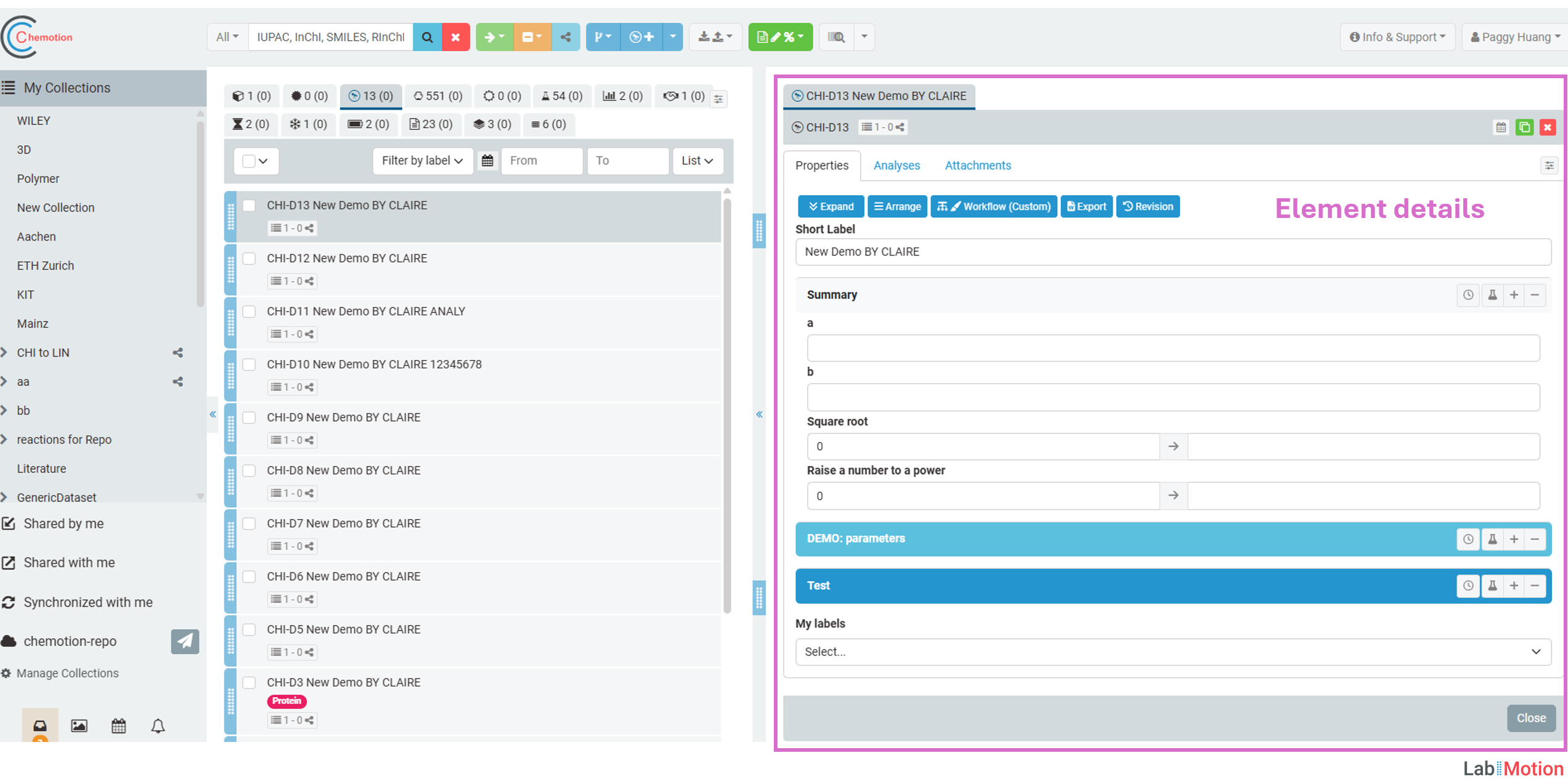
The details of the element are generated from the template designed by the designer. Clicking on a desired element from the list opens the details modal, displaying the 'Properties' tab by default.
Properties tab
The Properties tab serves as the primary section for an element. It contains essential information and allows users to drag elements, samples, or molecules from the element list.
By default, the first layer is expanded. An Expand/Collapse button is available to expand or collapse all layers simultaneously, making it easier to display the full content at once or to quickly hide sections and locate the desired layer.
User - Expand/Collapse Layers in Element Details
Analyses tab
The Analyses tab enables users to add analyses containing analytical data. In the Content field, users can input experimental results and upload experimental datasets. Users can then select the appropriate Type (Chemical Methods Ontology) from the provided list. For more details, please refer Ontology. The uploaded files can be converted to spectra format files according to the converter profile.
Add Analyses
You can create a new analysis by clicking the button. This opens a new analysis entry where you can:
- Enter experimental results in the Content field
- Upload associated data files as datasets using the button
- Select the measurement type from the Type dropdown menu using the Chemical Methods Ontology
- Add additional information and notes about the analysis
Each analysis can contain multiple datasets (files), allowing you to organize all related data for a particular measurement together.
Add to Report
Feature available in Chemotion ELN version 4.0 or later
The Add to Report feature allows you to selectively include analyses in generated reports. Each analysis has a checkbox button in its header that lets you toggle whether that specific analysis should be included when exporting or generating a report. This provides fine-grained control over which analytical results are included in your final documentation.
To add an analysis to a report, simply click the checkbox button in the analysis header. Selected analyses will be marked with a visual indicator and will be included when you generate or export your report.
Edit/Order Mode
Feature available in Chemotion ELN version 4.0 or later
At the top of the analyses tab, you will find two mode buttons: and . These buttons allow you to switch between two different interaction modes:
- Edit Mode (default): Enables editing of analysis properties, adding datasets, and other modifications. Click the button to activate this mode.
- Order Mode: Activates drag-and-drop functionality for reordering analyses. Click the button to enter this mode. In this mode, you can easily rearrange the sequence of analyses by dragging them up or down.
Comments on Analyses
Feature available in Chemotion ELN version 4.0 or later
You can add general comments to your analyses using the comment feature. A comment box can be accessed and toggled by clicking the button in the analyses section. This allows you to record observations, notes, or additional information about the overall analytical work without needing to add it to individual datasets. Comments are stored and displayed with the analyses group.
File Upload for Analyses
Feature available in Chemotion ELN version 4.0 or later
The Analyses from upload feature enables direct uploading of analysis files. You can upload associated data files (such as raw instrumental data, spectra, or other analytical results) by clicking the button. Multiple files can be attached to each analysis, and they are organized as datasets.
Attachment tab
The Attachment tab allows users to attach additional files/images to this element. If a user uploads images in the Attachment tab, the first image will be shown in the list.
By uploading Word files, Excel files, and presentation files, you can directly edit the files using the OnlyOffice service.
Segments tab
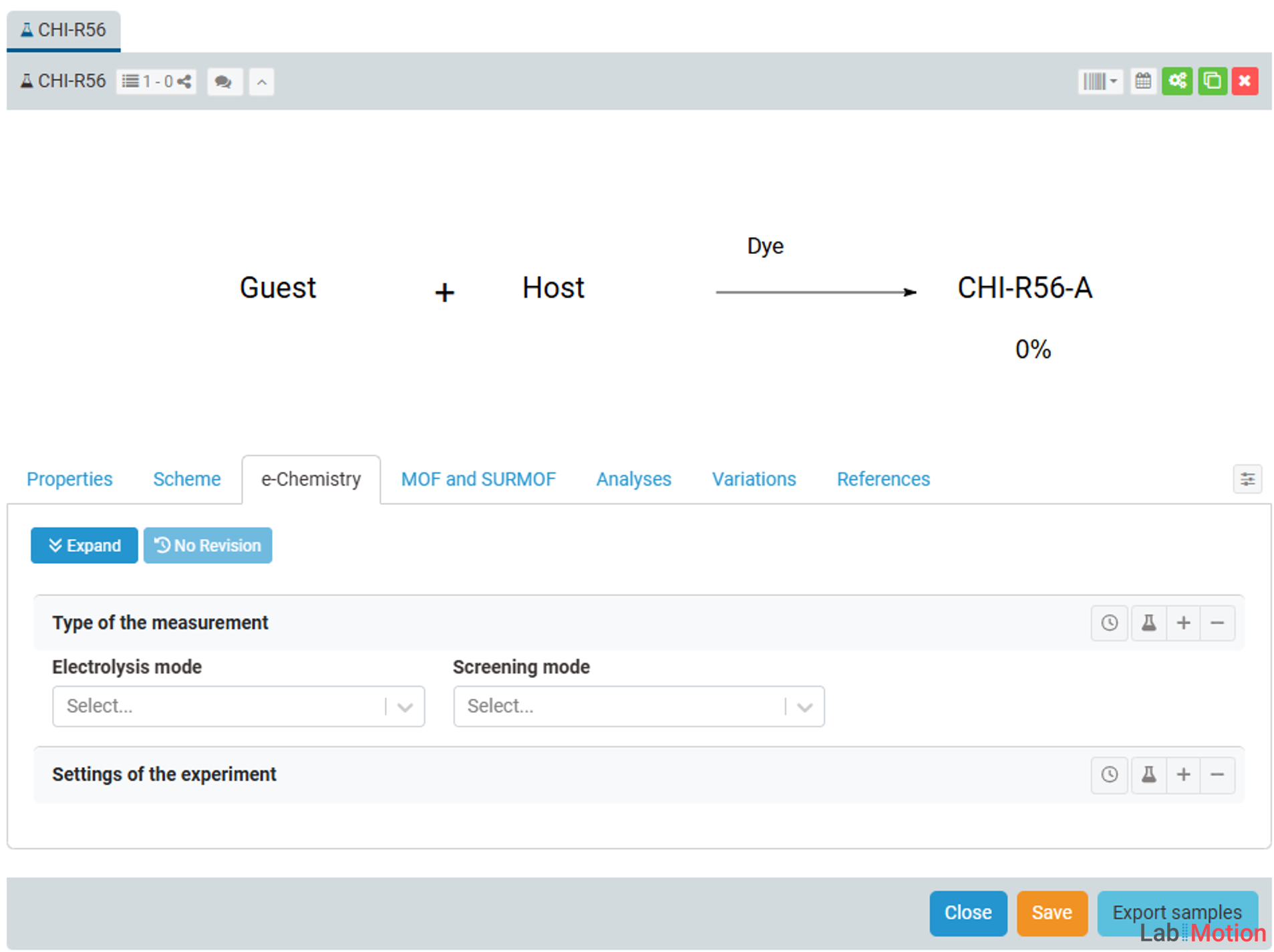
If segments are released and activated for this element, each will appear as its own tab, named according to the segment (for example, e-Chemistry tab, MOF and SURMOF tab). These tabs display the specific content and data defined in each segment.
For more details, please refer to the Segments section.